Login to the dashboard
You can use the dashboard to manage your resources in all regions.
At the login page, enter the following information which has been provided
- Domain: Enter your accounts domain
- Username: Enter your username
- Password: Enters your password
- Region: Select the region you would like to authenticate against
The top of the window displays your user name. You can also access the Settings tab (OpenStack dashboard — Settings tab) or sign out of the dashboard.
Region selection
The Cloud Platform is currently available in multiple regions
- AustraliaSouthEast: Melbourne, Australia
- AustraliaEast: Canberra, Australia
Resources can be created in either region and regions can be linked together with VPNs
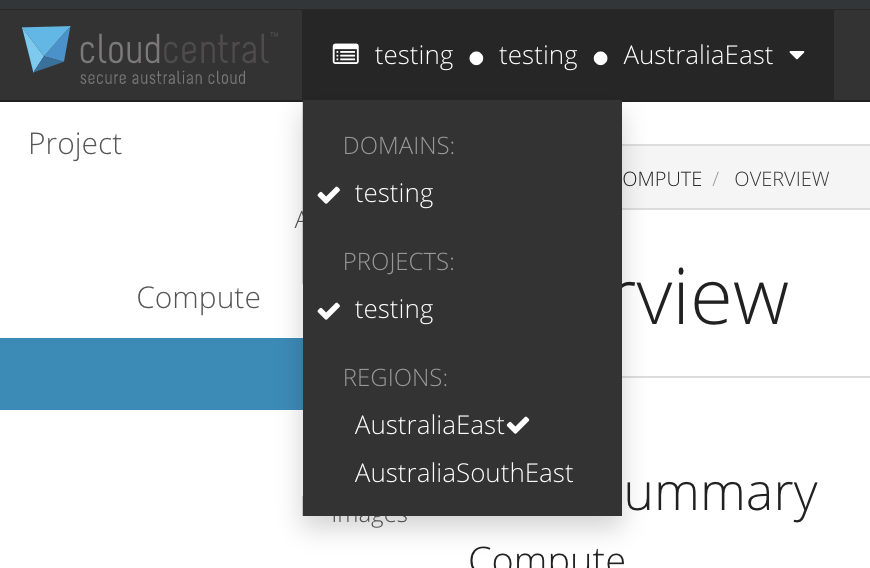
To change the region you are working in, use the drop down list in the top left corner of the dashboard to select which region you want to operate against.
Project tab
Projects are organizational units in the cloud and are also known as tenants or accounts. Each user is a member of one or more projects. Within a project, a user creates and manages instances.
From the Project tab, you can view and manage the resources in a selected project, including instances and images. You can select the project from the drop-down menu at the top left. If the cloud supports multi-domain model, you can also select the domain from this menu.
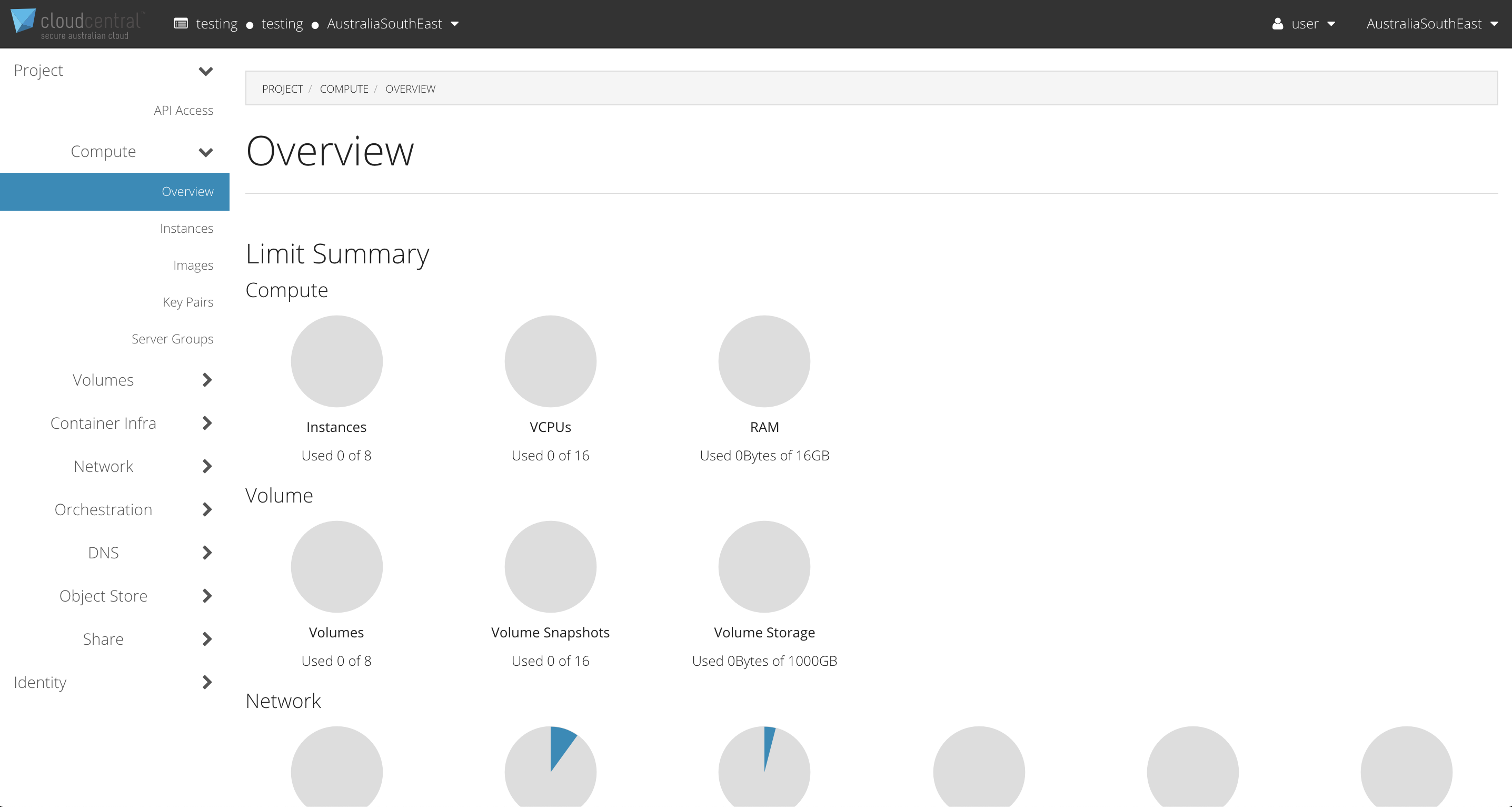
From the Project tab, you can access the following categories:
Compute tab
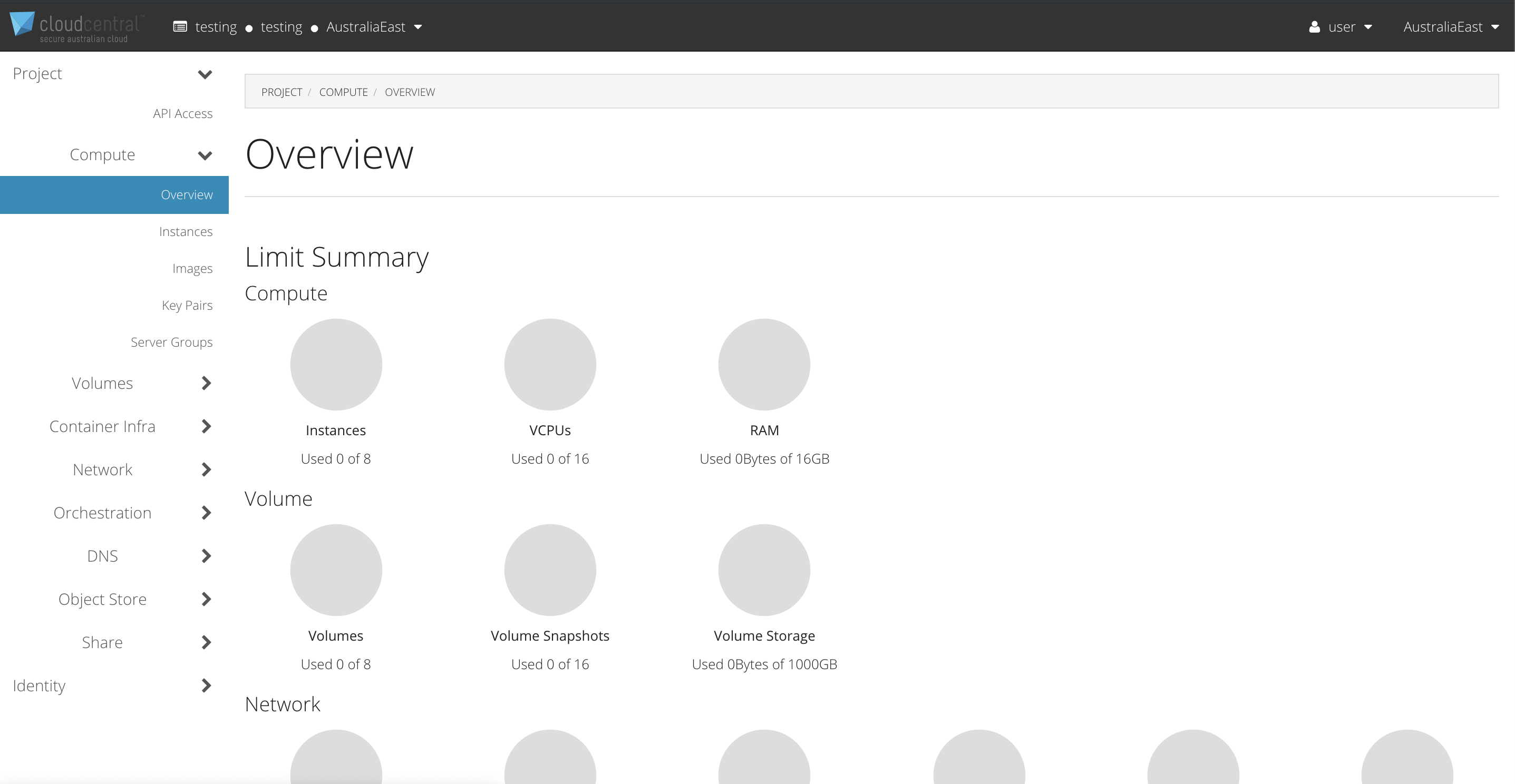
- Overview: View reports for the project.
- Instances: View, launch, create a snapshot from, stop, pause, or reboot instances, or connect to them through VNC.
- Images: View images and instance snapshots created by project users, plus any images that are publicly available. Create, edit, and delete images, and launch instances from images and snapshots.
- Key Pairs: View, create, edit, import, and delete key pairs.
Volume tab
- Volumes: View, create, edit, and delete volumes.
- Backups: View, create, edit, and delete backups.
- Snapshots: View, create, edit, and delete volume snapshots.
Container Infra
- Clusters: View, create, edit, and delete clusters.
- Cluster Templates: View, create, edit, and delete cluster templates.
Network tab
- Network Topology: View the network topology.
- Networks: Create and manage public and private networks.
- Routers: Create and manage routers.
- Security Groups: View, create, edit, and delete security groups and security group rules..
- Floating IPs: Allocate an IP address to or release it from a project.
- VPNs: Create and manage VPNs.
- Load Balancers: Create and manage Load Balancers.
Orchestration tab
- Stacks: View, create, edit and delete stacks.
- Resource Types: View available resource types.
- Template Versions: View available template versions.
- Template Generator: View, create, edit and delete templates.
DNS tab
- Zones: View, create, edit and delete DNS zones.
- Reverse DNS: View, create, edit and delete reverse DNS entries.
Object Store tab
- Containers: Create and manage containers and objects.
Share tab
- Shares: View, create, edit and delete shares.
- Share Snapshots: View, create, edit and delete share snapshots.
- Share Networks: View, create, edit and delete share networks.
- Security Services: View, create, edit and delete share security services.
- Share Groups: View, create, edit and delete share groups.
- Share Group Snapshots: View, create, edit and delete share group snapshots.
Identity Tab
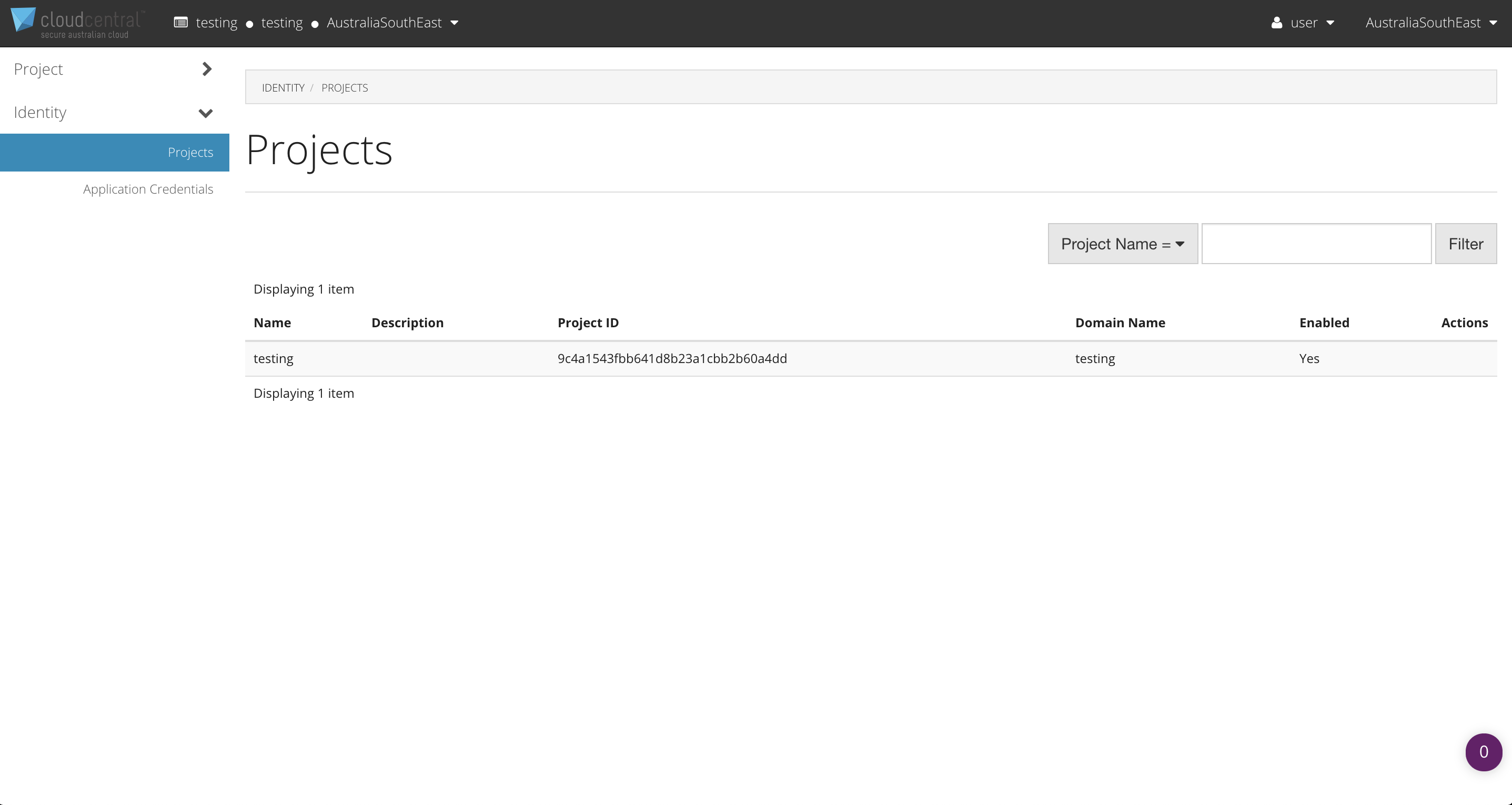
- Projects: View, create, assign users to, remove users from, and delete projects.
- Users: View, create, enable, disable, and delete users.